Why Charger Won’t Charge Dead Battery: A Simple Guide
It can be super frustrating when your phone or other device won’t charge, especially when the battery is completely flat. Why charger won’t charge dead battery can seem like a mystery, leaving you stuck with a useless gadget. Don’t worry, though! It’s a common problem, and often, there’s an easy fix. This guide will walk you through the most likely reasons why your charger isn’t working, and what you can do to get your device back to life. Let’s explore some solutions!
Possible Issues with Charger and Charging Devices
When your charger won’t work with a device, the problem could be the charger itself, the device, or both. It’s often a combination of factors, each contributing to the failure to charge. Identifying the root cause requires a bit of detective work, but it’s totally achievable. Many times, it is something simple, like a loose connection or a faulty cable. Let’s explore several possible issues so you can solve this problem quickly.
Faulty Charger Cable
The cable, sometimes called a charging cord, is the most common point of failure. These are often used, bent, and pulled, which can cause internal damage. A damaged cable may appear fine on the outside, but wires inside could be broken. You may also see frayed ends or exposed wires. Test it! If the cable is damaged, it might not deliver power correctly, causing your device to stop charging, or charge very slowly.
- Visual Inspection: Carefully examine the entire cable length for any visible signs of damage, such as cuts, bends, or exposed wiring.
- Physical Test: Try wiggling the cable near the connectors (the ends that plug into the charger and device) while plugged in. If the device starts or stops charging, the cable has an issue.
- Alternative Cable: Use another cable you know works to see if the device starts charging. If it does, the original cable is likely the issue.
- Cable Compatibility: Make sure the cable matches the charging requirements of your device. Using the wrong cable may not supply enough power.
If you find that the cable is damaged, the best solution is to replace it. Cables are often inexpensive and easily accessible at most electronics stores or online retailers. Consider getting a cable that is rated for fast charging if your device supports it, as it will charge your device more quickly. Be sure to purchase a cable from a trustworthy vendor to ensure safety and quality.
Problems with the Wall Adapter
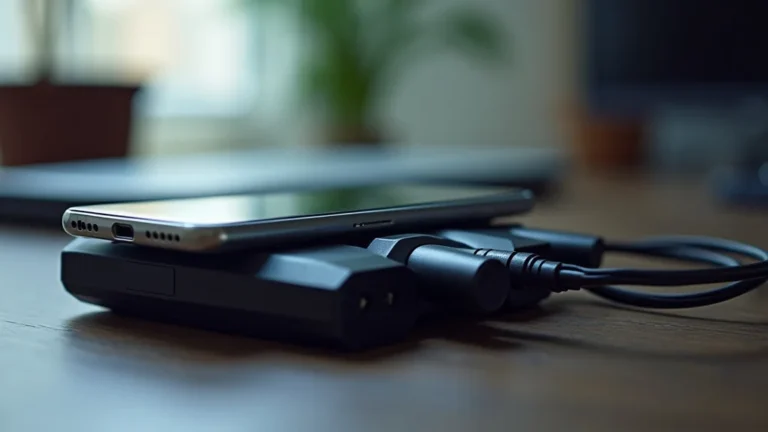
The wall adapter, also called the power brick, is the boxy part that plugs into the wall. It transforms the power from your wall outlet into a form your device can use. If this adapter is damaged or not working, it may fail to supply electricity to the device. This is a common issue, and the adapter may have been dropped, overheated, or just worn out over time. It can also be a more challenging issue than the cable, as you can’t always easily tell if the adapter is bad.
- Overheating: A wall adapter that is too hot is a sign of trouble, potentially a failing component. Unplug it immediately and replace it.
- Testing with Other Devices: Try plugging a different device (phone, tablet, etc.) into the same wall adapter. If it charges, the adapter is probably fine. If it doesn’t charge, then the adapter is the problem.
- Check the Outlet: Sometimes the wall outlet itself is faulty. Try a different outlet in your house to see if that helps.
- Voltage Compatibility: Ensure the adapter’s voltage output matches your device’s requirements. Using the wrong voltage can damage the device.
Testing the adapter is fairly simple and requires some basic trial and error. Make sure to use an adapter of a similar power rating or higher for fast charging, but do not exceed the device’s maximum charging capabilities. If it’s the wall adapter, replacing it is usually the solution, and replacements are inexpensive and easy to find. Make sure that the adapter is from a reputable source, which may also have safety features.
Issues with the Charging Port
The charging port is the small opening on your device where you plug in the cable. This part can get damaged by the normal use of plugging and unplugging, or from collecting dust, debris, or moisture. If the charging port is damaged, it may not create a good connection with the cable, causing charging problems. This is a very frequent reason why charger won’t charge dead battery.
- Visual Examination: Inspect the charging port closely. Look for any bent pins, debris, or damage.
- Cleaning the Port: Use a non-metallic tool, like a toothpick or a small brush, to gently clean out any lint or debris. Be careful not to damage the pins.
- Testing with Another Cable: Try a cable that is known to work to rule out cable issues.
- Device Repair: If the port is clearly damaged, you may need to take your device to a repair shop.
Cleaning the charging port can often resolve issues, especially if the problem is just a buildup of dust. If you see bent pins, you may try to carefully straighten them with a small tool, but be careful because the charging port may be permanently damaged. If you suspect damage, have a technician inspect the port to prevent any further problems. If the port is damaged, it will usually need to be replaced. Consider obtaining a professional to handle any port repairs.
Why Device Won’t Charge: Internal Battery Troubles
Besides external factors like cables and ports, internal problems can prevent charging. The battery itself might be damaged, have reached its end-of-life, or have protection mechanisms that have kicked in. When you examine why charger won’t charge dead battery, it can sometimes be the battery’s fault. Internal battery problems can be tricky, as they require a better level of diagnosis than the other issues.
Battery Damage
Batteries have a lifespan and degrade over time. If a battery is very old, it might no longer hold a charge, or it might have internal damage causing it to fail. The battery can also be damaged by extreme temperatures or by being overcharged, especially if you have left your device plugged in for extended periods of time. Battery damage is also possible if the device has been dropped or subject to physical shock.
- Battery Swelling: A swollen battery indicates internal damage and is a safety hazard. Stop using the device immediately.
- Battery Age: Check how old the device is. Batteries typically last for a few years, after which their performance degrades.
- Usage: Heavy usage can reduce a battery’s life more quickly.
- External Factors: Look for any indication the device has been subject to excessive temperatures, physical shock or any other potential damage.
Damaged batteries should be replaced by a professional to avoid further safety hazards. Check the device’s battery health, if available, in the device settings. The battery’s lifespan can depend on its usage and environment, so you may need to replace it more quickly if you use your device heavily. Over time, the battery capacity will naturally lessen, so plan on replacing it if you use your device often.
Battery Protection and Cutoff Circuits
Modern devices have battery protection circuits to prevent overcharging, overheating, and other issues. In some cases, these circuits can shut down charging if they detect a problem. If the battery is completely discharged, these circuits might also prevent charging until a minimum voltage level is reached. The function of these features is to increase the safety and longevity of batteries.
- Deep Discharge Protection: If the battery is deeply discharged, the protection circuit may not allow it to charge immediately.
- Overheat Protection: If the device or battery gets too hot, the charging will stop automatically.
- Voltage Threshold: Some devices have a minimum voltage threshold for charging to begin.
- Try a Different Charger: Using a different, higher-quality charger might sometimes bypass the protection circuit briefly, allowing the battery to start charging.
These protection circuits are usually a safeguard to help keep the device safe. If the protection circuit has been triggered, the charging process might be delayed until the battery has reached a minimum voltage. If your device appears to be not charging, give it some time, or try a different charger for a little while, to see if charging begins. If the problem continues, you might consider taking your device to a professional.
Software Glitches and Firmware Issues
Sometimes the problem why charger won’t charge dead battery is not a physical one; it can be due to software issues. Software glitches or firmware bugs on your device can sometimes interfere with the charging process. These can include issues with the operating system, the charging management software, or the communication between the device and the charger. This is a less common issue, but it does happen.
- Restarting the Device: Sometimes a simple restart can clear a temporary software glitch and restore charging functionality.
- Updating Software: Make sure your device has the latest operating system updates, which may include fixes for charging issues.
- Factory Reset: As a last resort, you can try a factory reset, but remember to back up your data first, because it will delete everything on your device.
- Checking for Corrupted Files: Run a scan for corrupted system files. These can also interfere with charging.
These software solutions can be relatively simple to attempt, but it’s important to backup all your data before doing a reset, as all of your files and settings will be deleted. Updating the operating system is often the first step, and any of these changes may work. If charging does not resume, you might need to seek assistance from your device’s manufacturer or a professional technician. Doing a factory reset should only be used as a last resort.
Troubleshooting Charging Issues: Step-by-Step Guide
If your device won’t charge, a logical approach is best. Here is a step-by-step guide to help you find out why charger won’t charge dead battery and find a solution. The following steps should help you get your device charging again. Starting with the easiest fixes first will ensure that you efficiently troubleshoot your issue.
- Check the Basics: Ensure the charger is plugged securely into both the wall outlet and your device. Check that the outlet is working.
- Inspect the Cable: Examine the charging cable for any damage. Try another cable if possible.
- Test the Wall Adapter: Try a different wall adapter.
- Clean the Charging Port: Gently clean the charging port.
- Restart Your Device: Sometimes a simple reboot can fix minor software glitches.
- Check for Software Updates: Make sure your device has the newest operating system updates.
- Try Different Charging Methods: Try charging via a computer’s USB port.
- Let it Charge Longer: Sometimes a completely dead battery needs more time to start charging. Leave it connected for at least an hour.
- Seek Professional Help: If none of the above steps work, it’s time to take your device to a repair shop.
Follow these steps in order to identify and resolve the charging issue. By systematically going through each step, you can isolate the problem. In many cases, it will be the cable or the wall adapter, and the solution will be fairly easy. If the problem is more complex, such as battery or port damage, you should seek out a professional. Following these steps will save you time and help you find the source of your device’s charging problem.
Advanced Diagnostics and Repair
If you’ve tried all the basic troubleshooting steps and still can’t figure out why charger won’t charge dead battery, it might be time for more in-depth testing. This can involve using specialized equipment, such as multimeters, and checking the internal components of the device. Professional repair services have the expertise and the tools to diagnose and repair more complex problems, such as a damaged battery or a defective charging port.
Using a Multimeter to Test
A multimeter is a tool that helps to test voltage, current, and resistance in electrical circuits. This is a very helpful tool to see if the charger is delivering power to the device. You can test the voltage output of the charger to see if it matches the device’s specifications. This can help to determine if the charger is faulty or if the problem lies elsewhere. Using a multimeter requires basic electrical knowledge.
- Voltage Check: Set the multimeter to measure DC voltage.
- Connect the Probes: Insert the red probe into the positive (+) port and the black probe into the common (COM) port.
- Measure the Output: Plug the charger into the wall and place the probes on the charger’s output terminals.
- Compare Readings: Compare the reading on the multimeter with the voltage indicated on the charger.
Make sure to review the specifications of your device before using a multimeter, and you can also check the charger’s specifications. Improper use of a multimeter may lead to damage of either the multimeter or the device. If the readings are incorrect, the charger is likely defective, or there may be a problem with the internal circuits of the device. If you’re not comfortable using a multimeter, have a professional do the testing.
Professional Repair Options
If your device continues to not charge, consider professional repair options. These services have the tools and experience to properly diagnose the problem. They can replace batteries, repair or replace charging ports, and fix other internal components. Attempting to repair complex issues yourself may damage the device. A professional repair ensures a proper diagnosis and repair.
- Authorized Service Centers: These centers, often run by the device’s manufacturer, offer high-quality repairs with genuine parts.
- Independent Repair Shops: Local repair shops often provide quicker service and competitive pricing.
- Warranty Considerations: Check your device’s warranty before seeking repairs. You may be able to get it fixed for free.
- Data Security: Ensure your data is backed up before handing your device over for repair.
When selecting a repair service, confirm their reputation, check reviews, and ask for a quote before authorizing the repair. This will help you get your device in working order and at a reasonable cost. Getting a professional will also provide an estimate of how long the repair will take. The final step is to back up your data before giving your device in for repair.
Frequently Asked Questions
Question: Why does my phone say it’s charging, but the battery percentage isn’t increasing?
Answer: There are a few reasons for this. The charging cable might not be delivering enough power, the wall adapter could be faulty, or your device’s battery may be damaged. In other cases, there could be software glitches preventing proper charging. Try a different charger, check the charging port for debris, and restart your phone.
Question: Can I use any charger for my device?
Answer: It’s generally safe to use chargers from other devices, but be careful. Make sure the voltage and current output of the charger matches your device’s requirements. Using a charger with the wrong voltage could damage your device, but using one with more power is usually okay.
Question: Is it safe to leave my phone charging overnight?
Answer: Modern devices are designed to stop charging when the battery is full, so it’s usually safe to leave your phone charging overnight. However, it’s wise to ensure your charger and device are in good condition, and that they are not subject to excessive temperatures while charging.
Question: My device got wet. Will this affect charging?
Answer: Yes, moisture can cause corrosion and damage to the charging port and internal components, which may prevent the device from charging. If your device gets wet, turn it off immediately, dry it with a soft cloth, and let it dry completely before attempting to charge it. You may need professional repair.
Question: How often should I replace my phone’s battery?
Answer: Battery lifespan depends on usage and the type of battery. Generally, you can expect to replace your phone’s battery every two to three years. If you notice your battery draining quickly or not holding a charge, it’s probably time to replace it.
Final Thoughts
When your device won’t charge, it’s often a frustrating experience. But, the key to solving why charger won’t charge dead battery often starts with simple steps, like checking the cable, the adapter, and the charging port. Knowing the basics of troubleshooting can save you time and money, and in most cases, you can solve the issue yourself. It is not always obvious what caused the issue, so step-by-step methods are best.
Once you’ve gone through the main checks, you’ll be well on your way to getting your device charged and ready to use. If the problem seems to be more complex, don’t hesitate to seek professional help. Armed with this knowledge, you are better prepared to address charging issues, and to keep your devices working. Happy charging!