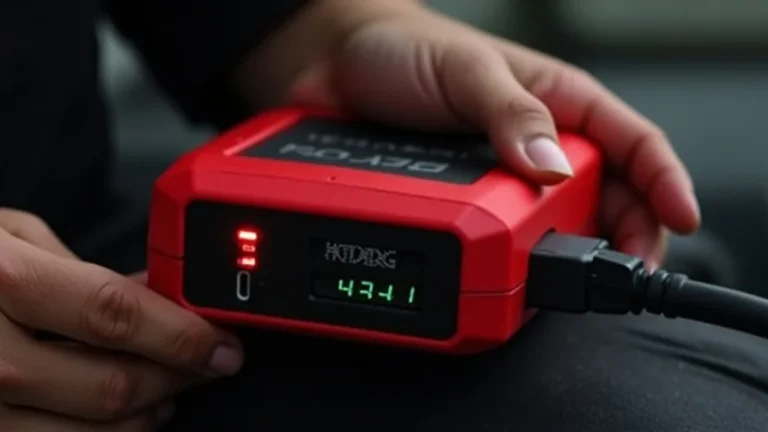
Identifying Parasitic Drain: Decoding Battery Drain Issues
Dealing with parasitic battery drain symptoms can be frustrating, especially if you’re not a tech expert. It’s when your device’s battery loses power even when you’re not actively using it. This is a common issue that many people encounter, and it’s often tricky to figure out the cause. But don’t worry! This guide will break down the problem in a way that’s easy to grasp. We’ll explore the common culprits and provide you with a straightforward, step-by-step approach to pinpoint the issue and reclaim your battery life. Let’s get started.
What Causes Battery Drain?
Battery drain occurs when something in your device continues to draw power even when the device appears to be off or idle. This is often referred to as a “parasitic drain.” It’s like having a tiny, invisible vampire that’s slowly but surely draining the life out of your battery. Several factors contribute to this, ranging from hardware flaws to software glitches. Recognizing the potential causes is the primary step in diagnosing and addressing the problem. Learning about these elements helps us build a basic comprehension of the problem, allowing us to investigate and resolve it efficiently. When we investigate the underlying causes of battery loss, we may pinpoint the source of the problem and discover ways to maximize battery life.
Software Issues and Background App Activity
One of the primary causes of parasitic drain is related to software. Many applications run in the background, consuming power even when you’re not actively using them. This background activity includes things like refreshing social media feeds, checking for updates, and sending data. Some apps are designed to be “always-on” and actively listening for information, which is a significant power drain. Another common issue is poorly written apps that aren’t optimized for energy efficiency. They might have bugs that constantly keep the device awake or use more processing power than necessary. This means that even with the screen off, the battery is still working hard, shortening its lifespan. Keeping track of the apps that consume a lot of battery is critical for keeping it alive.
- Background App Refresh: This feature allows apps to update content in the background, like fetching new emails or news articles. While convenient, it uses battery life.
- Location Services: Apps using location services, like navigation apps or social media, constantly search for your location, draining the battery.
- Push Notifications: Each notification you receive, from email alerts to game updates, requires your device to wake up, which uses battery power.
- Automated Syncing: Many apps sync data automatically, such as photos, contacts, and calendar events. This ongoing data transfer can eat up battery life.
Many apps are built to update in the background, keeping information refreshed without your direct interaction. This might involve collecting the latest news headlines, updating social media feeds, or ensuring the timely arrival of incoming emails. Though convenient, these automatic updates come at a cost to the battery. Location services are also culprits, as the continuous effort to determine your exact location requires significant power. The ongoing updates and notifications and syncing processes combine to create the perfect storm of battery drain.
Hardware Problems and Component Failure
Hardware issues can also cause excessive battery drain. A defective component, such as the battery itself or a damaged charging circuit, can draw more power than necessary. Over time, batteries degrade and may not hold a charge as effectively, leading to faster drain. Short circuits within the device, caused by physical damage or manufacturing defects, can also cause continuous power loss. These hardware-related issues often require professional repair, as they involve replacing or fixing components within the device. Diagnosing such problems requires specialized equipment and expertise. Recognizing the possibility of hardware issues is essential to a complete analysis of why your device’s battery is failing.
- Battery Degradation: Over time, batteries lose their ability to hold a charge, leading to faster drain.
- Charging Circuit Issues: Faulty charging components can cause the device to use power even when not in use.
- Short Circuits: Physical damage or internal problems can cause unintended power flow, draining the battery rapidly.
- Faulty Components: Any malfunctioning hardware element, like a Wi-Fi chip or display, can draw excessive power.
The battery is a key component, and its degradation is a normal occurrence over time. Every time you charge and discharge the battery, it loses a small bit of its capacity. Eventually, the battery won’t be able to hold a charge as well as it used to, causing it to drain faster. Furthermore, the charging circuit, essential for handling the flow of power, may experience difficulties that cause the device to consume power even when not in use. Internal damage can cause short circuits, causing unintended power flow. Also, malfunctioning hardware components, like the Wi-Fi or display, can also lead to excessive battery usage, resulting in a loss of power.
Operating System Bugs and Firmware Issues
Operating system (OS) bugs and firmware issues are another significant cause of battery drain. Software glitches in the OS can lead to various problems, including processes that constantly run in the background or cause components to malfunction. Updates from the manufacturer that contain bugs can also be a source of battery drain. These flaws may result in the device doing unnecessary processing, waking up from sleep more frequently, or draining more power than expected. Keeping the OS up-to-date is a key step, as the upgrades often contain fixes that resolve battery drain issues. Investigating any new issues after updating might provide useful insights.
- Software Glitches: Errors in the operating system can cause processes to run constantly, draining the battery.
- Buggy Updates: Sometimes, updates from the manufacturer might contain bugs that lead to increased power consumption.
- Incompatible Firmware: Firmware that is not compatible with the hardware can cause problems with power management.
- Poor Optimization: Operating systems that are not optimized for a particular device may drain the battery faster.
Software glitches are frequent in an operating system, possibly causing it to operate in the background and drain battery life. An OS update might also contain bugs that lead to increased power use. Furthermore, firmware incompatibility can cause power management problems. Poor optimization within an operating system is another factor in battery drain. These flaws can lead to components working more than they should, causing excessive use and ultimately draining the battery. Staying current with device upgrades and investigating any fresh battery issues might provide insights into the cause.
Identifying and Diagnosing Battery Drain
Identifying and diagnosing battery drain requires a systematic approach. Several tools and methods can help pinpoint the causes and assess your device’s power usage. This includes checking battery usage statistics, monitoring app activity, and performing some basic troubleshooting steps. Taking the time to observe and evaluate your device’s behavior will help to narrow down the possible causes of the battery loss. This thorough method not only assists in locating the source of the problem but also enables you to optimize the device’s efficiency, ensuring that the battery lasts as long as possible.
Using Built-In Battery Statistics
Most modern devices have built-in battery statistics that provide information about battery usage. These tools offer valuable insights into how your battery is being used. You can view which apps and hardware components are consuming the most power. You can often see the battery usage by app, along with statistics on how much the screen, Wi-Fi, and other hardware components are using. This information is a great starting point, allowing you to quickly spot the major power hogs. By tracking the use over time, you can notice patterns and identify when specific apps or features consume extra battery.
- Check Battery Usage by App: This feature reveals which apps are using the most power.
- Monitor Screen-On Time: The amount of time your screen is on can significantly affect battery life.
- Track Hardware Usage: Identify how much power components like Wi-Fi and Bluetooth are consuming.
- Review Usage Over Time: Analyzing usage over a few days can help you identify any patterns.
Knowing how your battery life is distributed may be done by examining battery use by app. This allows you to identify the apps that consume the most power. Monitor how long your display has been on to see how much of a drain it is. Furthermore, monitoring the use of components like Wi-Fi and Bluetooth reveals how much energy each one consumes. To have a more complete picture of battery usage, monitor your device’s power drain over several days and note any patterns. By tracking this information, you can identify problems and improve battery efficiency.
Monitoring App Activity and Background Processes
Monitoring app activity and background processes is crucial to understanding battery drain. Some apps are constantly working in the background, consuming power even when you’re not using them. It’s like having a busy office in your pocket. There are tools available that can show you which apps are running in the background and how much power they are consuming. This enables you to pinpoint the apps that may be causing a major drain on your battery. It also helps to prevent unnecessary power usage. When you detect excessive background activity, you may take action to reduce the load on your battery.
- Identify Background Apps: Determine which apps are running in the background.
- Check for Excessive CPU Usage: High CPU usage can indicate a problem.
- Monitor Data Usage: Excessive data usage can also lead to battery drain.
- Review Running Services: Look for any services that are consistently active.
Determine which apps are operating in the background to discover their power requirements. Excessive CPU use may indicate a problem, such as an application doing too much work in the background. Excessive data use is a factor contributing to battery drain. Also, look at the running services to detect any that are persistently active, as they may be utilizing resources. By observing and tracking these elements, you may identify apps that are needlessly consuming energy. Reducing these background tasks may significantly improve your device’s battery life.
Troubleshooting Steps
Troubleshooting is a methodical method of resolving battery drain issues. Several basic steps may be used to identify and fix the problem. Begin by restarting the device to clear any temporary glitches that may be causing problems. After restarting, check the battery use statistics to see if the drain has changed. Then, close any unnecessary apps that are running in the background. If the problem persists, examine the device settings for energy-saving options or features. Finally, consider a factory reset as a last resort. If these steps don’t work, you may need to seek professional help.
- Restart Your Device: A simple restart can often resolve minor software issues.
- Close Unnecessary Apps: Shut down any apps you are not actively using.
- Adjust Device Settings: Enable power-saving features and reduce screen brightness.
- Perform a Factory Reset (Last Resort): Resetting your device to factory settings can solve persistent issues.
A simple restart can fix minor software problems that cause battery drain. By restarting the device, you may clear any temporary problems. Close any apps you are not actively using to decrease background activity. Adjust the device settings to enable power-saving features. Finally, consider performing a factory reset, but only if other actions fail. Following these actions may often improve battery performance.
Advanced Techniques and Solutions
Advanced techniques and solutions can provide more in-depth solutions for battery drain. These strategies go beyond the simple troubleshooting steps, including more thorough methods for finding and fixing battery issues. This entails exploring app management in detail, identifying system-level problems, and applying specific fixes. By embracing these more advanced approaches, you may fine-tune your device’s power management and ensure it runs as efficiently as possible.
App Management and Optimization
App management and optimization are important strategies to reduce battery drain. First, be aware of which apps are using the most battery. You can do this by regularly checking battery usage statistics. If an app consumes too much power, consider updating it to the most recent version or removing it. Also, restrict background activity, which may involve disabling background refresh or limiting location services. Regularly evaluating the apps you have installed and their use patterns is a proactive step toward conserving battery life. This aids in identifying and removing resource-intensive apps.
- Identify Battery-Intensive Apps: Use battery usage statistics to find power-hungry apps.
- Update or Remove Problem Apps: Keep apps updated and uninstall those that consistently drain the battery.
- Restrict Background Activity: Limit background refresh and location services.
- Use Battery Saver Mode: Enable battery saver mode to automatically adjust settings.
By regularly monitoring your device’s battery use, you may discover which apps are consuming too much power. For these apps, try updating them to the most recent version or consider removing them. Consider restricting background activity by turning off background refresh or limiting location services to conserve battery life. Furthermore, use the device’s battery saver to automatically adjust settings and reduce power usage. Through efficient app management, you can considerably improve battery performance and prolong the life of your device.
Identifying System-Level Issues
Identifying system-level issues requires a more thorough assessment of the device’s performance. Often, a combination of tools and information helps in locating the source of a persistent drain. Monitoring the device’s performance over time can reveal any patterns or unexpected behavior. Examining system logs may expose error messages or anomalies linked to battery consumption. Consider running diagnostics and tests. These tests can help you identify any hardware or software problems. If the underlying cause is complex, you may need a professional diagnosis to make the necessary repairs.
- Monitor System Performance: Observe your device’s performance over time.
- Check System Logs: Review system logs for error messages.
- Run Diagnostics and Tests: Use built-in or third-party diagnostic tools.
- Consider Professional Diagnosis: If issues persist, seek expert help.
Use your device’s performance to see if there are any battery drain patterns or unexpected behavior. Review the system logs to identify error messages that could be related to battery use. Run diagnostics and tests to discover problems. These tests assist in finding hardware and software problems. It might be necessary to seek professional help to diagnose the source of the problem. A thorough diagnosis may ensure a complete solution. This proactive method helps you optimize your device and resolve system-level problems, thereby conserving battery power.
Implementing Specific Fixes and Workarounds
Implementing specific fixes and workarounds may provide quick relief from battery drain. These are quick fixes or modifications that address certain battery-draining problems. For example, if a specific app is causing problems, you may disable its background activity or use an alternative app. If a hardware component is the source of the drain, you can try temporarily disabling it to observe whether it improves the battery life. By using these strategies, you may quickly minimize battery usage and enhance your device’s overall efficiency. This proactive approach helps to provide instant benefits and improve the long-term functioning of your device.
- Disable Problematic Apps: Turn off or uninstall apps that drain the battery.
- Adjust Hardware Settings: Turn off unnecessary features like Bluetooth or Wi-Fi.
- Use Alternative Apps: Find apps that are more battery-friendly.
- Update Device Firmware: Make sure your device has the latest firmware updates.
Disable or uninstall apps that drain the battery. Adjust the hardware settings by turning off unnecessary functions, such as Bluetooth or Wi-Fi, to conserve battery life. By identifying and restricting the use of battery-intensive features, you may improve battery performance. Explore alternative apps to identify choices that are more battery-friendly. Furthermore, ensure that your device has the most recent firmware updates installed. Taking these activities may significantly improve your device’s battery life.
Case Studies and Real-World Examples
Real-world examples demonstrate how parasitic drain affects users and how they overcome it. The cases presented demonstrate real-world scenarios, which provide valuable insights into how these problems manifest and how effective methods can resolve them. These stories show that battery drain problems may be caused by a variety of factors. These circumstances highlight the value of combining awareness, diagnosis, and action. Through the experiences of others, you may learn how to recognize and solve battery drain issues, enabling you to optimize your device and improve battery life.
- Case Study 1: The Social Media Drain
- Case Study 2: The Location Service Mystery
- Case Study 3: Hardware Malfunction Issue
Sarah found that her phone’s battery drained quickly. After checking the battery use statistics, she found that the social media app was consuming a large portion of the battery. She updated the app and disabled background activity, significantly improving battery life.
John’s phone battery dropped fast throughout the day. After checking his settings, he found that location services were always on for numerous applications. He limited location access to only when necessary, which considerably improved the battery life.
After upgrading her phone’s software, Mary’s battery life dropped dramatically. She consulted a technician, and it was found that the new update was not compatible with the phone’s hardware, and the problem was addressed by downgrading the software.
Sarah discovered that her phone’s battery was draining quickly. She discovered that a social media app used a big amount of battery life after analyzing the battery use statistics. She improved battery life by upgrading the app and deactivating background activity. John’s phone battery drained fast all day. He found that location services were always on for many applications after checking his settings. He considerably improved the battery life by restricting location access to only when needed. Mary’s battery life dropped dramatically after updating her phone’s software. She spoke with a technician, and it was discovered that the new update was incompatible with the phone’s hardware, and the issue was resolved by downgrading the software.
Frequently Asked Questions
Question: What is parasitic battery drain?
Answer: Parasitic battery drain is when your device’s battery loses power even when you’re not actively using it.
Question: How can I tell if my device has parasitic drain?
Answer: If your battery drains quickly even when you’re not using your device, that’s a sign of a problem.
Question: What causes this type of battery drain?
Answer: Background apps, hardware problems, and software glitches can all cause it.
Question: How can I fix the parasitic drain?
Answer: Close unnecessary apps, adjust settings, update software, and check for hardware issues.
Question: Can I fix the drain myself, or do I need help?
Answer: You can often fix it with some troubleshooting, but hardware problems may need professional help.
Final Thoughts
Identifying and resolving parasitic battery drain symptoms on your device doesn’t have to be a mystery. By understanding the common causes, such as background app activity, hardware problems, and software glitches, you’re already halfway there. Take it one step at a time, check your device’s battery statistics, monitor app activity, and go through the basic troubleshooting steps like restarting and adjusting settings. Remember, simple changes like updating your apps, restricting background processes, or adjusting the screen brightness can make a big difference. If you encounter persistent problems, don’t hesitate to dig deeper. The right information and a little bit of effort can bring back your battery life and ensure your device works as it should. Embrace these tips to take control of your battery life.